

Cara Menambah Barang & Jasa Baru Di Accurate Online
[fusion_builder_container hundred_percent=”no” hundred_percent_height=”no” hundred_percent_height_scroll=”no” hundred_percent_height_center_content=”yes” equal_height_columns=”no” menu_anchor=”” hide_on_mobile=”small-visibility,medium-visibility,large-visibility” status=”published” publish_date=”” class=”” id=”” border_size=”” border_color=”” border_style=”solid” margin_top=”” margin_bottom=”” padding_top=”” padding_right=”” padding_bottom=”” padding_left=”” gradient_start_color=”” gradient_end_color=”” gradient_start_position=”0″ gradient_end_position=”100″ gradient_type=”linear” radial_direction=”center” linear_angle=”180″ background_color=”” background_image=”” background_position=”center center” background_repeat=”no-repeat” fade=”no” background_parallax=”none” enable_mobile=”no” parallax_speed=”0.3″ background_blend_mode=”none” video_mp4=”” video_webm=”” video_ogv=”” video_url=”” video_aspect_ratio=”16:9″ video_loop=”yes” video_mute=”yes” video_preview_image=”” filter_hue=”0″ filter_saturation=”100″ filter_brightness=”100″ filter_contrast=”100″ filter_invert=”0″ filter_sepia=”0″ filter_opacity=”100″ filter_blur=”0″ filter_hue_hover=”0″ filter_saturation_hover=”100″ filter_brightness_hover=”100″ filter_contrast_hover=”100″ filter_invert_hover=”0″ filter_sepia_hover=”0″ filter_opacity_hover=”100″ filter_blur_hover=”0″][fusion_builder_row][fusion_builder_column type=”1_1″ spacing=”” center_content=”no” link=”” target=”_self” min_height=”” hide_on_mobile=”small-visibility,medium-visibility,large-visibility” class=”” id=”” hover_type=”none” border_size=”0″ border_color=”” border_style=”solid” border_position=”all” border_radius=”” box_shadow=”no” dimension_box_shadow=”” box_shadow_blur=”0″ box_shadow_spread=”0″ box_shadow_color=”” box_shadow_style=”” padding_top=”” padding_right=”” padding_bottom=”” padding_left=”” margin_top=”” margin_bottom=”” background_type=”single” gradient_start_color=”” gradient_end_color=”” gradient_start_position=”0″ gradient_end_position=”100″ gradient_type=”linear” radial_direction=”center” linear_angle=”180″ background_color=”” background_image=”” background_image_id=”” background_position=”left top” background_repeat=”no-repeat” background_blend_mode=”none” animation_type=”” animation_direction=”left” animation_speed=”0.3″ animation_offset=”” filter_type=”regular” filter_hue=”0″ filter_saturation=”100″ filter_brightness=”100″ filter_contrast=”100″ filter_invert=”0″ filter_sepia=”0″ filter_opacity=”100″ filter_blur=”0″ filter_hue_hover=”0″ filter_saturation_hover=”100″ filter_brightness_hover=”100″ filter_contrast_hover=”100″ filter_invert_hover=”0″ filter_sepia_hover=”0″ filter_opacity_hover=”100″ filter_blur_hover=”0″ last=”no”][fusion_title title_type=”text” rotation_effect=”bounceIn” display_time=”1200″ highlight_effect=”circle” loop_animation=”off” highlight_width=”9″ highlight_top_margin=”0″ before_text=”” rotation_text=”” highlight_text=”” after_text=”” hide_on_mobile=”small-visibility,medium-visibility,large-visibility” class=”” id=”” content_align=”left” size=”1″ font_size=”” animated_font_size=”” line_height=”” letter_spacing=”” margin_top=”” margin_bottom=”” margin_top_mobile=”” margin_bottom_mobile=”” text_color=”” animated_text_color=”” highlight_color=”” style_type=”default” sep_color=””]
Menambah Barang & Jasa Baru
[/fusion_title][fusion_text columns=”” column_min_width=”” column_spacing=”” rule_style=”default” rule_size=”” rule_color=”” hide_on_mobile=”small-visibility,medium-visibility,large-visibility” class=”” id=”” animation_type=”” animation_direction=”left” animation_speed=”0.3″ animation_offset=””]
Untuk membuat Barang & Jasa, dari menu Persediaan | Barang & Jasa adalah sbb :
1. Klik menu Persediaan | Barang & Jasa.

2. Pada tab Umum, masukan informasi Kategori, Kode Barang dan Nama Barang.

3. Pada tab Penjualan dan Pembelian, lengkapi informasi Harga Jual, Diskon dan PPN serta informasi yang lain.

4. Pada tab Saldo Awal, masukan infomasi saldo awal dari barang yang Anda buat (jika ada).
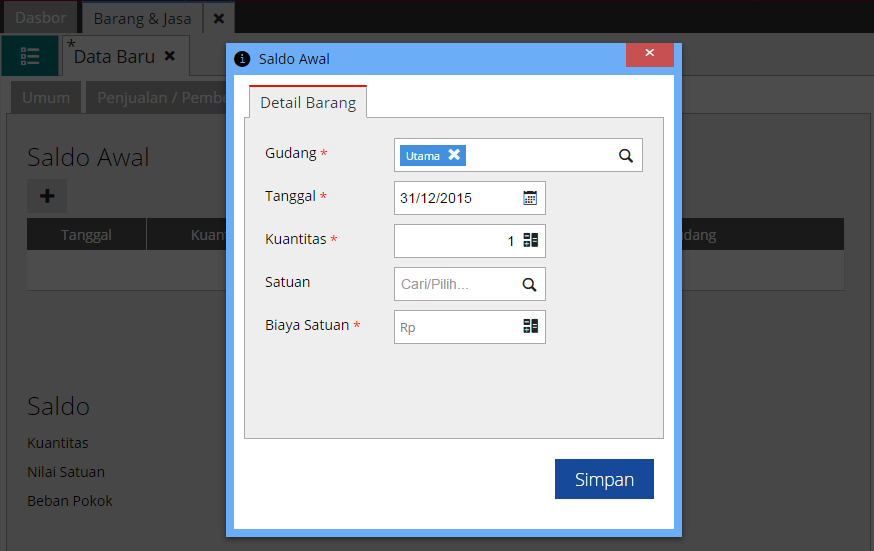
5. Klik Simpan untuk memasukkan saldo awal, dan hasilnya spt pada gambar di bawah.

6. Tab Lain-Lain, isi dengan keterangan yang mendefinisikan barang tsb. Jika barang tsb menggunakan Nomor Seri, maka centang No.Seri pada opsi Ya.

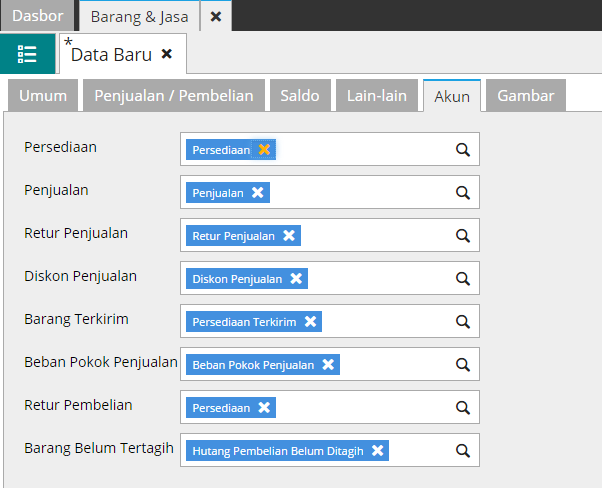
7. Pada tab Akun, secara otomatis akan terisi sesuai dengan Akun Perkiraan Barang yang telah diset pada menu Pengaturan | Preferensi | Akun Perkiraan | Barang. Jika ada yang tidak sesuai, bisa diganti dengan klik tanda X, lalu isi kembali dengan akun yang sesuai.
8. Pada tab Gambar berisi tampilan barang yang Anda buat. Anda dapat memasukkan gambar dengan mengklik tombol +, lalu ambil file JPG atau PNG yang Anda sudah simpan atas barang tsb lalu klik Open untuk mengupload.

9. Klik Simpan jika telah selesai, dan untuk melihat daftar dari barang & jasa yang telah Anda buat klik tombol yang diberi tanda lingkaran.

[/fusion_text][fusion_text columns=”” column_min_width=”” column_spacing=”” rule_style=”default” rule_size=”” rule_color=”” hide_on_mobile=”small-visibility,medium-visibility,large-visibility” class=”” id=”” animation_type=”” animation_direction=”left” animation_speed=”0.3″ animation_offset=””]
Mau Coba Gratis Accurate Online?
[/fusion_text][fusion_button link=”https://klinikkeuangan.store/coba-gratis-accurate-online-mau-banget/” text_transform=”” title=”” target=”_self” link_attributes=”” alignment=”left” modal=”” hide_on_mobile=”small-visibility,medium-visibility,large-visibility” class=”” id=”” color=”default” button_gradient_top_color=”” button_gradient_bottom_color=”” button_gradient_top_color_hover=”” button_gradient_bottom_color_hover=”” accent_color=”” accent_hover_color=”” type=”” bevel_color=”” border_width=”” border_radius=”” border_color=”” border_hover_color=”” size=”xlarge” stretch=”default” icon=”” icon_position=”left” icon_divider=”no” animation_type=”” animation_direction=”left” animation_speed=”0.3″ animation_offset=””]KLIK DISINI[/fusion_button][/fusion_builder_column][/fusion_builder_row][/fusion_builder_container]


Leave a Reply
Want to join the discussion?Feel free to contribute!